 KINSMC
Start by defining what the model needs to see
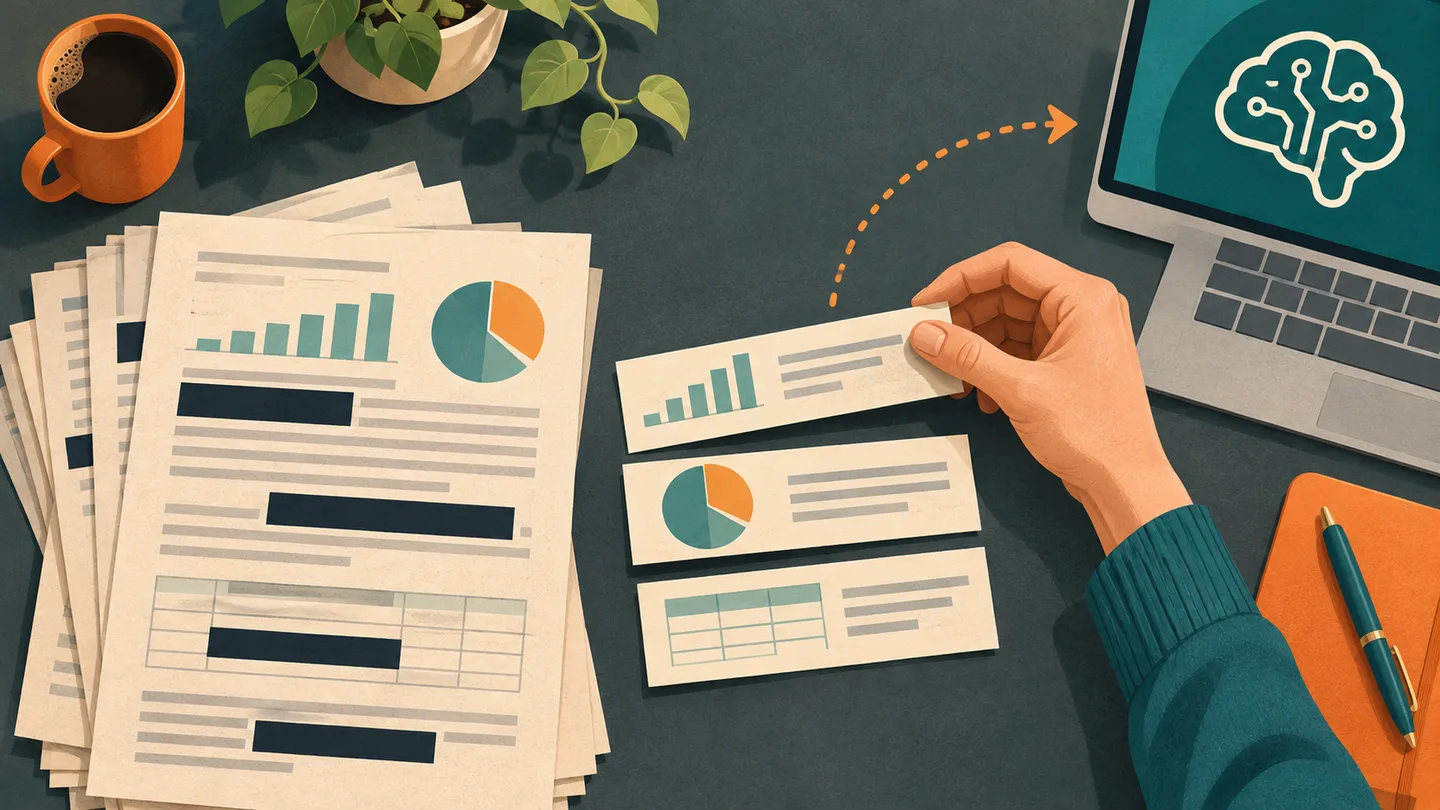
A service team wants to group recent support tickets into recurring issues. The original export contains customer names, email addresses, order numbers, and notes from staff. The grouping task mainly needs a short description of each issue and enough context to tell two problems apart. Before opening the AI tool, the team can turn the export into a small working file that contains just those details.
Start with one sentence describing the output. For this example, use: “Group the issue descriptions into themes and suggest a short label for each group.” Read it back and ask which fields would change the answer. An order number rarely changes a topic label. A short description such as “password reset link expired” usually does. If the task requires judging a timeline, elapsed time may preserve the relevant fact while omitting the original date.
Make a smaller file from the start
Keep the source in its approved location and create a blank working file. Copy only the information needed for the task. For the support example, three columns are enough to begin: temporary ticket label, issue description, and outcome category. Use a temporary label such as Ticket A if you need to refer back to the row. Keep any lookup table in the original restricted workspace. If there is no need to refer back to an individual row, omit the label too.
It helps to write a replacement rule for repeated details. You might replace specific product variants with a product category, exact dates with the month or a relative interval, and locations with a region. Then test that the changes preserve the distinction you need. If you are comparing failures during a specific update window, “same day as the update” could be more useful than a calendar date. Leave genuinely unknown details blank so the model can flag gaps.
Look for clues that still identify someone
A name is easy to spot. A distinctive combination can be just as revealing. Imagine a ticket about the only after-hours delivery to a small office on a particular street. Removing the name still leaves a place, a time, and a rare event. A useful rewrite might be “An out-of-hours delivery failed because the access code was unavailable.” The practical detail survives and the unnecessary clues disappear.
Read the new file as if you already knew something about the people or customers involved. Could you connect the remaining information to a public announcement, a shared calendar, or another record? Repeated labels also reveal which rows belong together. Use them only where that link serves the task. The UK Information Commissioner’s Office distinguishes pseudonymisation, where a person can still be identified with additional information, from anonymisation. Treat your working copy as potentially sensitive whenever details could still be linked back.
Inspect the exact file that will leave your workspace
Open the final copy on its own. Search for the names, company domains, and reference patterns that appeared in the original. Scan the first few rows, the last few rows, and any unusually long entries. Check that attachments and quoted email threads were left behind. If you are using a spreadsheet, look at every tab and check for hidden rows or columns. If you are using a document, inspect comments, tracked changes, and file properties. For a small text-only task, a fresh plain-text file or a clean CSV makes the review easier because there are fewer places for extra content to travel.
A black rectangle placed over text can be a visual cover. Where you must preserve a PDF layout, use a trusted redaction tool that removes the underlying content and verify the exported copy by searching and selecting text around the redacted areas. For a routine analysis task, extracting the needed facts into a clean file is often simpler than trying to preserve a complex original.
Check permission after the content check
A reduced file still needs an approved destination. Confirm the account, sharing route, and purpose before uploading. Use KINSMC’s guide on how to check whether an AI tool can use your data for the provider and account questions. When the decision is unclear, work with an invented sample to develop the prompt, or ask the relevant data owner which environment is approved. NIST’s generative AI risk profile includes privacy risks arising from disclosure and unauthorized use. A file prepared for one analysis may need another review before it is reused for a different purpose.
Start a new task with two or three fictional rows and see if the output format works. Expand to the approved working copy only once the task makes sense. KINSMC’s guide to testing an AI workflow before using it at work explains how to judge the output. The last thing to check is the actual attachment name and contents, especially when an original and a working copy sit side by side.
Sources
ICO guidance on pseudonymisation · NIST generative AI risk profile · Microsoft guidance on inspecting files for hidden content · Adobe guidance on removing visible and hidden PDF content