 KINSMC
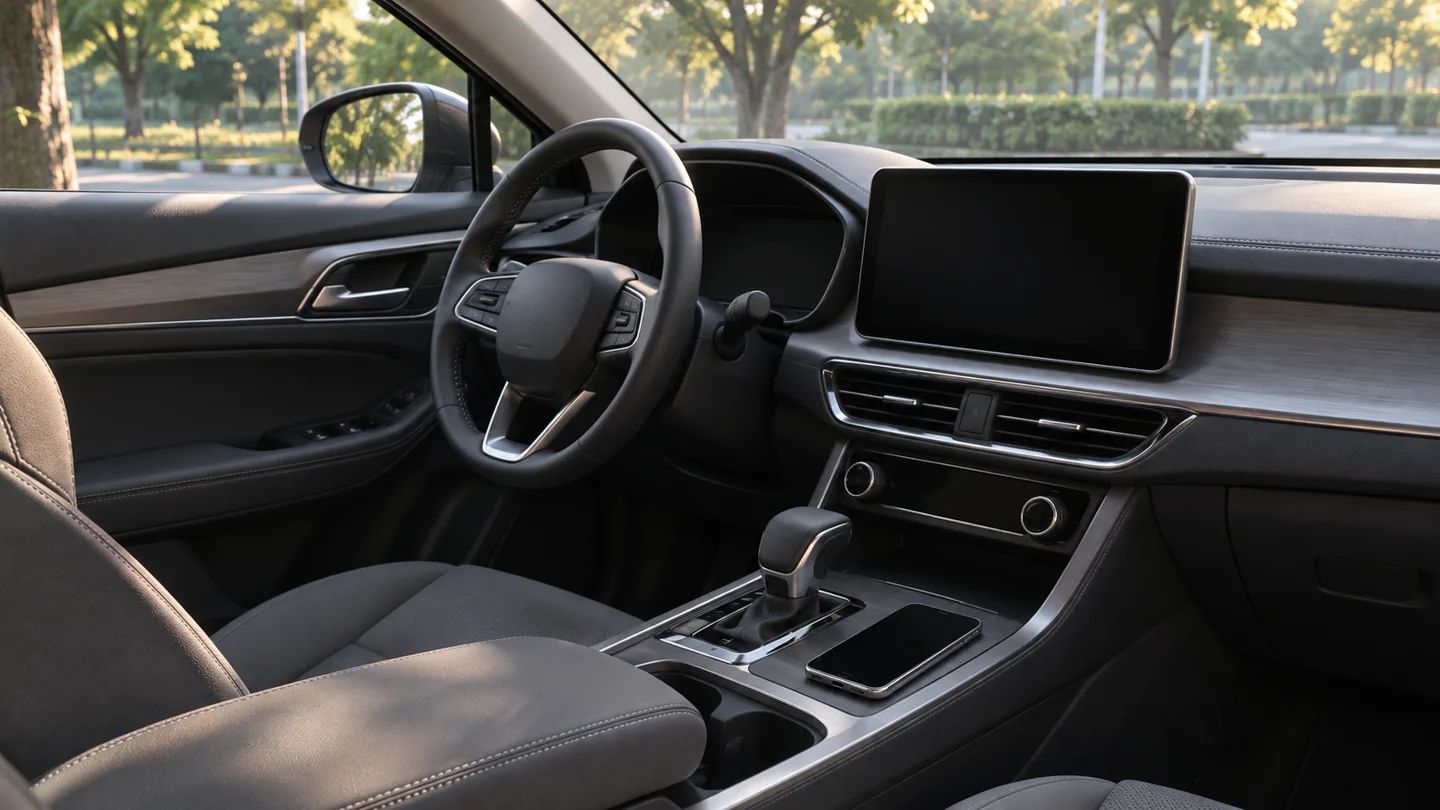
Google said on November 11 that it was beginning a global rollout of Gemini Live on Apple CarPlay for Gemini users on iOS in supported Gemini Live languages. The quickest way to find out whether the feature is ready for you is to check the phone first and the car display second. Do the setup while parked so you can switch between the two screens and read any permission prompts.
Start with Gemini on your iPhone
Update the Gemini app on the iPhone you connect to CarPlay. Open the app, allow microphone access when requested and start Gemini Live at least once. Google lists all three steps in its CarPlay rollout announcement. If you already use Gemini by typing, make sure you have actually started a voice session. This gives you an immediate way to see whether Gemini Live can hear you and respond before you bring the car into the picture.
Use a simple prompt, such as asking for three things to check before leaving for a weekend trip. End the conversation when you have heard the reply. If the microphone permission was previously declined, review the Gemini app’s microphone permission on your iPhone and test again. If Gemini Live itself is unavailable on the phone, check whether the language you use is supported and whether the app is up to date before spending time on the car’s settings.
Open Gemini on your CarPlay display
If you drive two cars, use the same iPhone for both tests and check each car separately in the iPhone’s CarPlay settings. If Gemini works on the phone but none of your usual CarPlay apps appear in one vehicle, start with Apple’s connection steps for that car. If those apps work but Gemini is missing in both vehicles, note your app version and the language you used on the phone. Those details make it easier to distinguish a phone or rollout issue from a problem with one vehicle.
Reconnect the iPhone to CarPlay using the method your car supports. Apple’s guide to setting up CarPlay covers the wired and wireless paths and explains how to organize the apps on the car’s display. Once CarPlay is open, look for Gemini in the app launcher. Google says you can use the Gemini icon to start a new conversation or return to a recent one. That icon is the place to start the feature described in the launch announcement.
Still missing? First check whether the rest of CarPlay is working. If you can open your usual apps, the connection is established and you can focus on Gemini. Apple shows how to open Settings, then General, then CarPlay on the iPhone, select the car and choose Customize. Look for Gemini there. If it is available, check its position in the app list and swipe through the launcher pages on the display. If it is absent after you have completed the phone setup, keep the rollout in mind. Google announced a start date, so check again after the app or feature reaches your setup.
Try a short conversation and check your history
Start with something you can review later. For example, ask for three questions to take to a meeting, then add one constraint in a follow-up, such as keeping each question under ten words. Google describes Gemini Live as a back-and-forth voice experience. The company also says CarPlay conversations sync with the Gemini app on iPhone. Once parked, open the app and check the recent conversation before relying on it as a record. If you are using a shared phone or account, consider who can access that chat history before speaking about personal matters.
Use the app for tasks that suit a brief spoken exchange. When a question calls for checking an address, looking at a screen or comparing several details, handle it while parked. The same habit of testing a feature on the exact device you carry applies to other launches. Our Pixel Tag compatibility guide shows how to check individual features against your phone’s capabilities before relying on them.